Register
The registration process is quite simple, and you just need to follow the given instructions at the time. Nonetheless, we describe the process here:
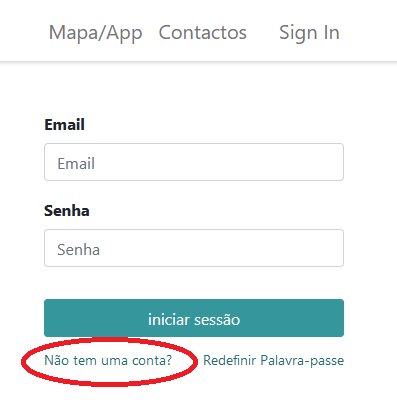
Click on "Sign In" in the menu bar:
Click on "Don't have an account?"
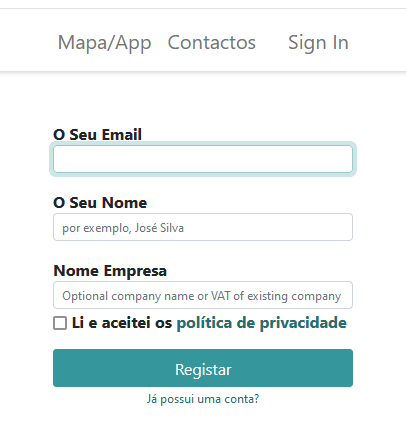
- Fill in with your email and name;
- The "Company Name" field is optional;
- Accept the privacy policy.
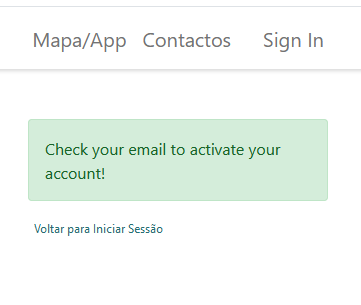
You will receive the following confirmation:
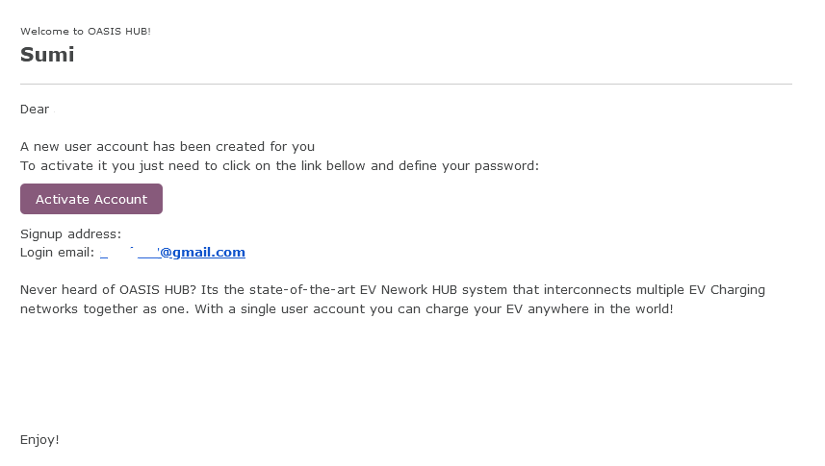
Check your email; if you haven't received it, look in the Spam or Junk folder.
Click on "Activate Account".
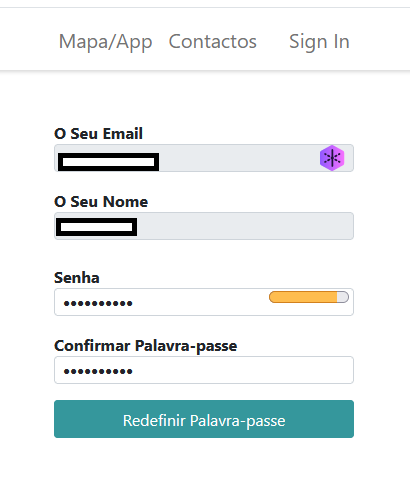
Choose your password and confirm it in the next field.
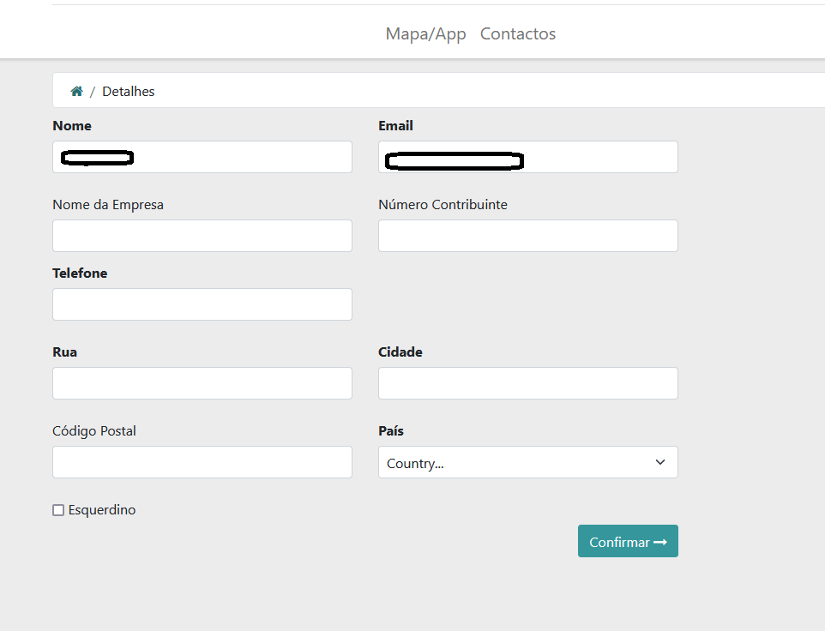
Fill in the fields as desired, with only the following field being mandatory:
- Phone.
"Left-handed" is to choose whether the buttons are on the right or left side of the screen. This is mainly for more comfortable use on a mobile phone.
You can always edit this information at any time in your account.
Next, you will be directed to the main page of your account.
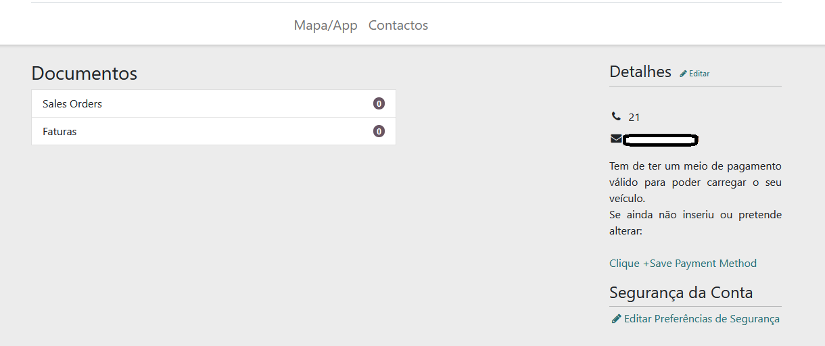
Payment details
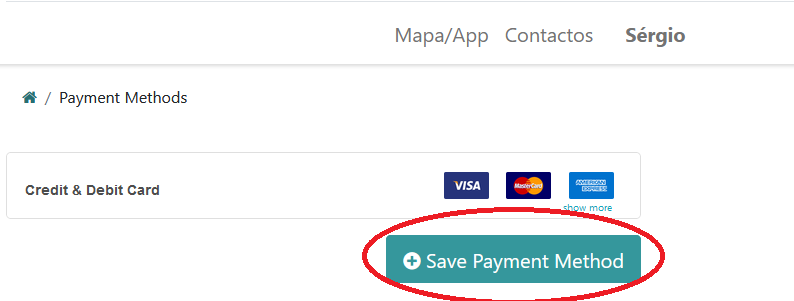
On your account page, click "+Save Payment Method" to add or change your payment method.
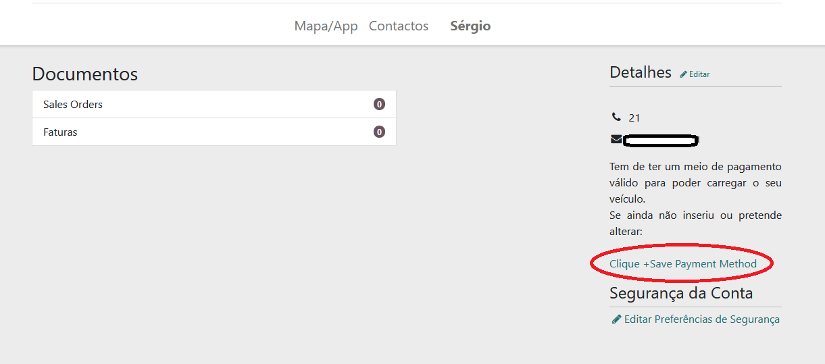
Here, you can add a new payment method, review what you currently have, or change the existing one.
The first time, you need to add a new payment method by clicking on "+ Save Payment Method."
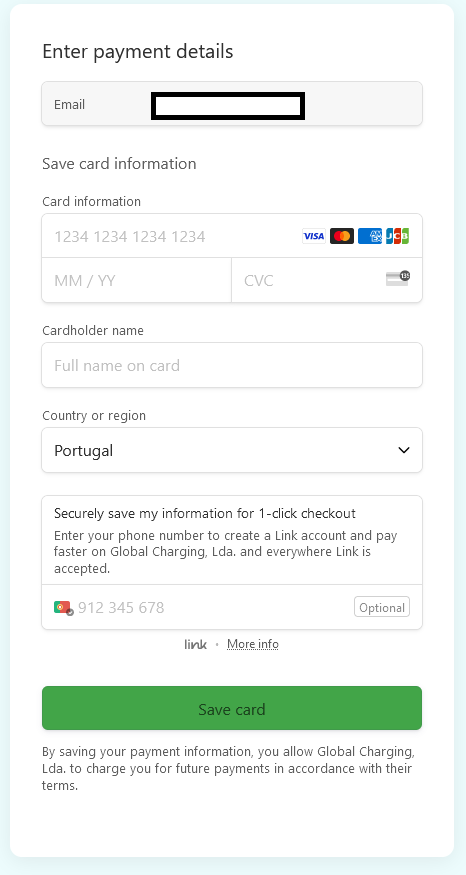
Enter your credit or debit card details.
You will only need to complete this operation once.
After clicking "Save card," you may need to validate it in your financial institution's app the first time.
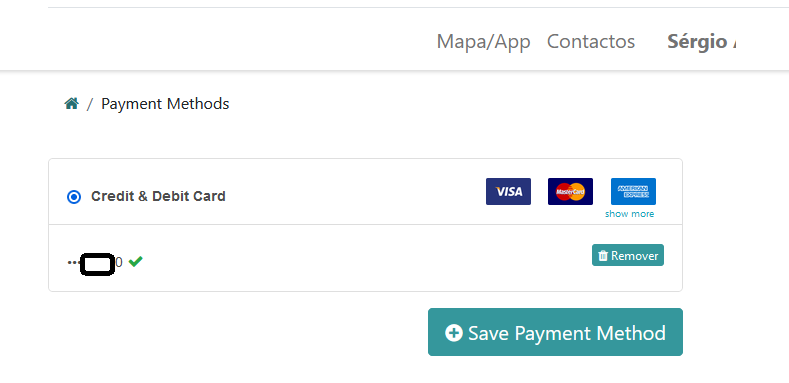
Next, the last 4 digits of your card will appear, along with a green checkmark indicating success.
From now on, you only need to log in and you can access any station by going to the OASIS HUB.
How to charge
You can use either of the 2 methods:
1. Scan the QR code with your mobile phone camera and open the link.
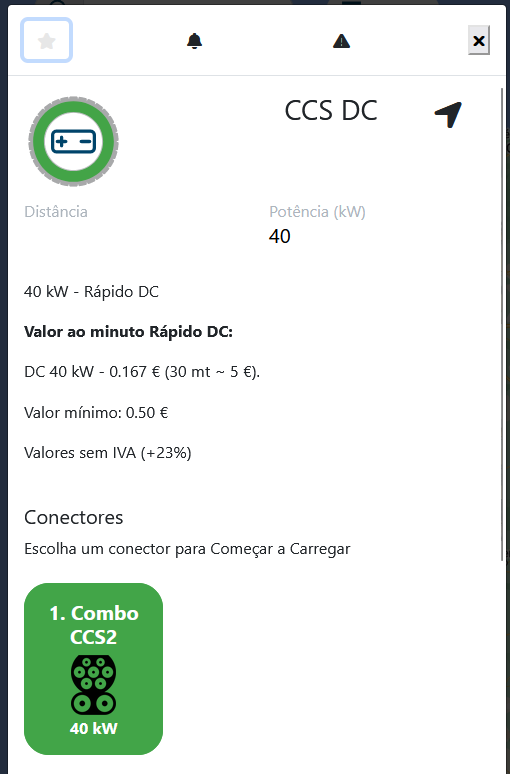
Click on the green "Connector" that you connected to your vehicle.
2. Open the map in any browser and click on the charger.
Link do MAPA
Click on the green "Connector" that you connected to your vehicle.
If your account is already validated, the process is automatic. If not, simply log in and repeat the steps.
The values displayed are for the total services and access to the OASIS HUB solution.
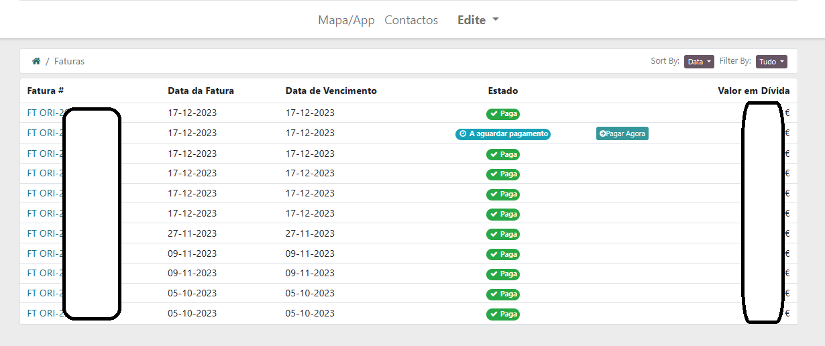
Invoices
They are always received at the email address you used for registration.
If you provided a tax identification number, invoices will be issued with that number and your name. If you did not provide a tax identification number, invoices will be issued as "final consumer."
You can check on your account page.
Click on "Invoices."
You can click on each one to access and download the document.
Common Problems
I can't remove the plug/cable from the charger.
Above the plug support on standard AC chargers and fast DC chargers, there is a small button to lock the plug in place. You need to press this button to release it. On fast DC chargers, the button is hidden by the metal support..
I can't start the charging, and I'm not receiving any notification.
- When you scan the QR code or click on the charger on the map, is the plug showing as green?
If not, the charger may be malfunctioning or disconnected. Please report the issue and move to another charger. - Check if the cable is properly connected to the vehicle and is fully inserted into the vehicle’s socket.
- I have the cable properly inserted, the plug is green, and it still doesn’t start. The charger is having an issue; please report it and move to another charger.
I can't remove the plug/cable from the vehicle after charging.
- Your vehicle must be locked. Unlock the vehicle and try again.
- Are you sure that the charging has stopped?
If not, stop the charging first and then unlock your vehicle or the charging plug.
Report Issues
Please fill out the form at the following link.